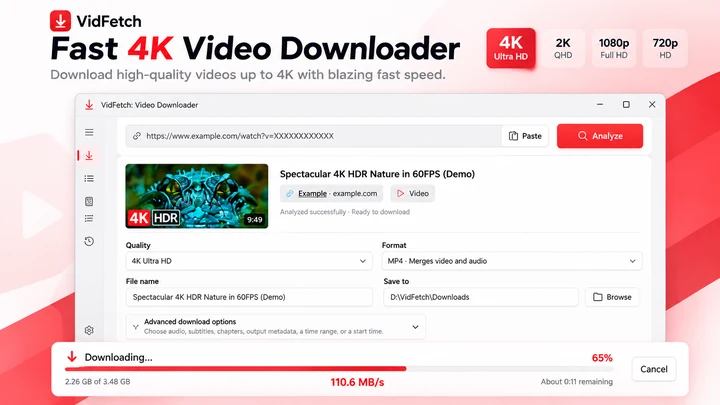
Download high-quality videos in 4K Ultra HD and up to 8K with VidFetch Pro.

Media
Video Downloader 4K & Converter Pro
Black MonthPro Lifetime 40% off on Microsoft Store (US) through Nov 29
A 4K video downloader and converter for Windows, formerly QuickMedia.
Download videos fast in 4K Ultra HD and up to 8K, save complete playlists, queue multiple video links, and keep your media offline on your Windows PC.
Windows app. Pricing and requirements are listed on Microsoft Store.
At a glance
View the official listingIs it right for you?
Choose Video Downloader 4K & Converter Pro if
the file needs work after you save it: a copy that plays anywhere, a smaller file, a sideways or mirrored video put right, a shorter clip, MP3 audio or a GIF.
Choose Direct Link Downloader instead if
you want one app for most downloads: direct links, M3U8/HLS and MPD/DASH streams, supported livestreams, MP3 and fast trimming, with 4K/8K and batches of up to 500 links in Pro.
Choose VidFetch instead if
you need subtitles with the video: pick a language, creator-provided or auto-generated, and save them next to the file or embedded in it (Pro).
Not sure? Answer 2 questions to find yours →
Side by side
| Feature |  Video Downloader 4K & Converter Pro |  Direct Link Downloader |  VidFetch |
|---|---|---|---|
| Save videos from supported links | Yes | Yes | Yes |
| 4K and 8K when the source offers it | Pro | Pro | Pro |
| M3U8 (HLS) and MPD (DASH) streams | Not listed | Yes | Not listed |
| Record supported livestreams | Not listed | Yes | Not listed |
| Subtitles by language, saved or embedded | Not listed | Not listed | Pro |
| Playlists and many links at once | Pro | Pro | Pro |
| Download queue with progress | Yes | Yes | Yes |
| Retry failed downloads | Not listed | Yes | Yes |
| Local download history | Not listed | Yes | Yes |
| Video to MP3 | Yes | Yes | Not listed |
| Trim videos | Yes | Yes | Not listed |
| Convert to MP4 and compress | Yes | Pro | Not listed |
| Rotate, mirror or make a copy that plays anywhere | Yes | Not listed | Not listed |
| Make GIFs and capture frames | Yes | Not listed | Not listed |
✓ listed feature · Pro: with the app’s Pro option · — not listed as a feature. Current details, pricing and Pro options are on each Microsoft Store listing.
Meet Video Downloader 4K & Converter Pro
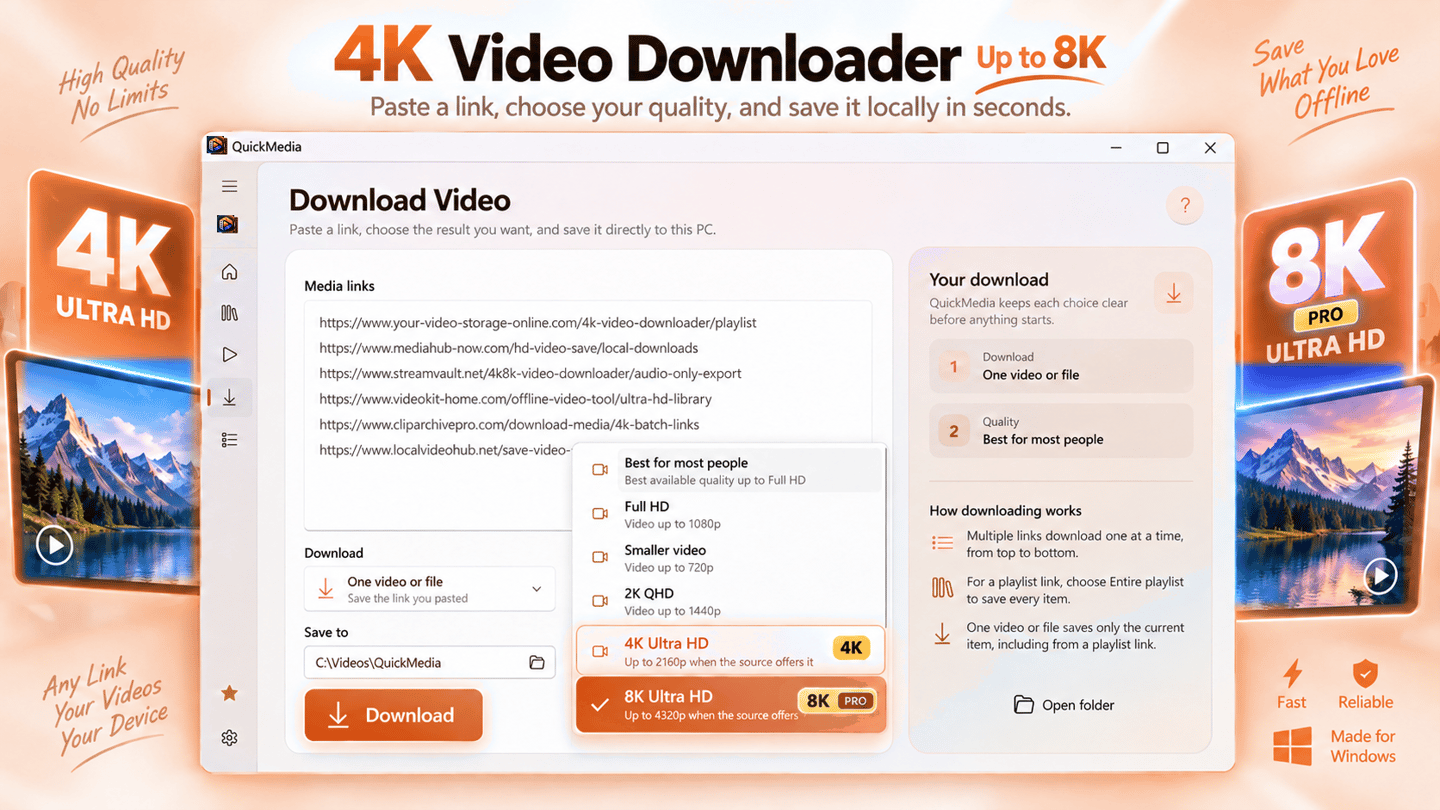
Download videos fast in 4K Ultra HD and up to 8K, save complete playlists, queue multiple video links, and keep your media offline on your Windows PC. QuickMedia is a fast video downloader for Windows built around clear quality selection, live transfer speed, real-time progress, pause and recovery controls, and direct local saving. Choose the quality you want, start the download, and follow speed, progress, file size, and remaining time from one clean interface. 4K and 8K availability depends on the resolution and formats made available by the source, while actual download speed depends on the source, network conditions, and your Internet connection. Downloading is only the beginning: QuickMedia also includes a local Media Studio for video compression, video conversion, MP3 audio extraction, quick trimming, GIF creation, frame capture, batch processing, and offline playback.
Choose the quality you want before downloading and save supported media directly to your PC for offline use. Depending on what the source makes available, QuickMedia can support Full HD 1080p, 2K QHD 1440p, 4K Ultra HD, and up to 8K Ultra HD. During a download, QuickMedia shows useful real-time information including transferred size, current transfer speed, progress percentage, download status, and remaining time when available. Maximum resolution is determined by the media formats and quality provided by the source.
Have more than one video to save? Add multiple supported media links and let QuickMedia handle them in one workflow instead of repeatedly starting individual downloads. Choose your preferred settings, select where the files should be saved, and let the download queue progress while you keep track of each job from the same interface. QuickMedia Pro expands this workflow to support queues of up to 20 download links.
Save supported playlists without downloading every item manually. Choose Entire Playlist, select your preferred quality, and QuickMedia can process the available playlist items into an organized local folder. QuickMedia Pro supports up to 100 playlist items in one workflow, making it practical for larger authorized collections. Availability, formats, and maximum quality can vary between individual playlist items depending on what the source provides.
Stay informed while your download is running. QuickMedia displays current progress, transferred file size, live transfer speed, download status, remaining time when available, and controls for supported pause or recovery workflows. Interrupted queue items can be recovered when supported, helping you continue work without rebuilding your entire download list. Actual transfer speed varies based on your Internet connection, source-server performance, network conditions, selected format, file size, and other factors outside QuickMedia's control.
QuickMedia is more than a video downloader. Open compatible local media and choose the result you want without dealing with a complicated professional editing timeline. Media Studio provides straightforward tools for compressing videos, converting media, extracting MP3 audio, trimming clips, creating GIFs, saving frames, rotating or mirroring video, preparing files for broader playback compatibility, and processing multiple files in batches. Local Media Studio workflows run on your PC, and QuickMedia creates new output files while leaving your original source files untouched.
Create a balanced smaller copy of a large video when you want to save storage space or produce a file that is easier to upload, transfer, or share. QuickMedia handles the processing locally and keeps the original source file unchanged. Pro users can also use Fit a Size Limit for workflows where the output needs to target a specific upload, attachment, or storage requirement.
Use Play It Anywhere to create a broadly compatible MP4 copy for supported devices, apps, and playback environments, or use Make It Full HD to create a 1080p, 30 FPS MP4 from compatible source media. QuickMedia also includes workflows designed to prepare compatible video for smoother editing without requiring you to manually configure every technical encoding option.
Need the audio without the video? Choose Audio Only to extract audio from a compatible video and create an MP3 file directly on your PC. This is useful for recordings, lectures, presentations, personal media, and other authorized content where you only need the audio track. QuickMedia Pro also provides supported higher-quality audio output options including 256 kbps and 320 kbps.
Keep only the part of a video you need with a simple visual timeline instead of opening a full video editor. Quick Cut lets you select a section of compatible media and create a trimmed result quickly, with processing that can avoid unnecessary re-encoding when the source format and selected operation support it.
Turn part of a compatible video into an animated GIF, capture a selected moment as a high-quality image, or use QuickMedia Pro to create a Contact Sheet containing 12 key moments from a video. These tools are useful for tutorials, demonstrations, presentations, thumbnails, reference material, and lightweight visual sharing, all without sending your local media to a remote editing service.
QuickMedia includes practical everyday operations for compatible media. Rotate Right turns the picture 90 degrees clockwise, Mirror Video creates a horizontally flipped copy, rewrap workflows can move compatible media into another container without unnecessary quality loss, and editing-oriented output options can prepare compatible files for smoother use in other applications.
Process multiple local media files in one workflow instead of repeating the same operation file by file. Select several compatible videos, audio files, or images, choose a supported Media Studio operation, and let QuickMedia create the results as a batch. The free version supports up to 5 compatible local files per batch, while QuickMedia Pro expands this to up to 50 files. Batch processing is useful for compressing multiple videos, extracting audio from several files, creating compatible output copies, preparing media for playback, or repeating the same operation across a group of local files.
Play downloaded and locally processed media without leaving QuickMedia. The built-in player can be used to watch offline videos, preview downloaded files, verify converted outputs, review trimmed clips, and maintain a local playback queue. Theater Mode provides a larger viewing experience, while Mini Player makes it easier to keep media playing while you continue working elsewhere on your PC.
Media Studio workflows are performed locally on your device, so your personal local files do not need to be uploaded to a remote conversion server before QuickMedia can process them. QuickMedia creates new output files and keeps the original source files untouched, giving you a straightforward local workflow for conversion, compression, trimming, extraction, and other supported media operations.
QuickMedia includes useful downloading, playback, and local media tools for everyday use. QuickMedia Pro expands the app with 4K Ultra HD downloads when available from the source, up to 8K Ultra HD when available, queues of up to 20 download links, playlist workflows of up to 100 items, local Media Studio batches of up to 50 files, Exact Size processing, Contact Sheet creation, Burn Subtitles, Merge Videos, Merge Audio, 4K and 8K Image Upscale, higher-quality 256 kbps and 320 kbps audio options, saved exact-size recipes, and other supported advanced output controls. Pro is available through Monthly, 6 Months, and Lifetime options, with current pricing and availability shown through Microsoft Store.
QuickMedia does not add a QuickMedia watermark to your processed output files. Downloaded or locally processed media remains focused on your content rather than adding an application logo or branded overlay.
QuickMedia is intended for downloading and processing media that you own, have permission to use, have licensed, or are otherwise legally authorized to access and save. You are responsible for ensuring that your use of QuickMedia complies with applicable laws, copyright requirements, and the terms and policies of the source service. QuickMedia does not bypass DRM, remove DRM protection, unlock protected media, circumvent access controls, or provide access to private accounts or restricted content.
Download availability depends on the source and on the media formats, resolutions, and delivery methods that source makes available. A displayed maximum quality such as 4K or 8K does not mean that every video is available at that resolution, and the actual available quality is determined by the source media. Download speed can vary based on your Internet connection, source-server performance, network conditions, media size, selected format, and other external factors. Some sources, media types, formats, playlists, or individual items may not be supported or may become unavailable if a source changes how its media is delivered.
QuickMedia is not affiliated with, sponsored by, endorsed by, or officially associated with any third-party website, video platform, media service, software vendor, or content owner unless explicitly stated otherwise. Third-party names, products, services, and trademarks belong to their respective owners.
See the Microsoft Store listing for current features, system requirements, supported languages, and purchase options.
Try it in your browser
Free and private: the video plays from your device and nothing is uploaded.
The video plays from this device in your browser. Any format your browser can play: MP4 (H.264), WebM, and usually HEVC and AV1.
Common questions
Video Downloader 4K & Converter Pro is a Windows app by SteveShines in the Media category. Download videos fast in 4K Ultra HD and up to 8K, save complete playlists, queue multiple video links, and keep your media offline on your Windows PC.
Highlights of Video Downloader 4K & Converter Pro: Download videos from supported websites; Save videos in Full HD (1080p); Download 4K and 8K videos with Pro when available; Choose available video quality and resolution; Batch download multiple video links with Pro; Download supported playlists with Pro; Save playlists of up to 100 videos with Pro; Manage downloads in an organized queue; Track download progress and transfer speed; Pause and resume supported downloads; Choose custom video download folders; Convert videos between supported formats; Compress large videos to reduce file size; Extract MP3 audio from local videos; Trim videos into shorter clips; Create animated GIFs from video clips; Capture still images from video frames; Batch process supported local media files; Play downloaded videos offline; Keep downloaded and processed files locally.
Video Downloader 4K & Converter Pro runs on Windows 11, Windows x64, and Windows ARM64 PCs. See the Microsoft Store listing for full system requirements.
Video Downloader 4K & Converter Pro is available in English, German, Spanish, French, Indonesian, Italian, Japanese, Korean and 8 more.
Install Video Downloader 4K & Converter Pro from its official Microsoft Store listing (https://apps.microsoft.com/detail/9NS671FB16L7). Microsoft Store handles installation and updates, and the listing shows current pricing and purchase options.
Video Downloader 4K & Converter Pro is developed and published by SteveShines, which makes Windows apps for files, media, creative work, and desktop productivity. For help, use https://steveshines.com/contact/.
Runs in your browser. Nothing is uploaded.
Download high-quality videos in 4K Ultra HD and up to 8K with VidFetch Pro.
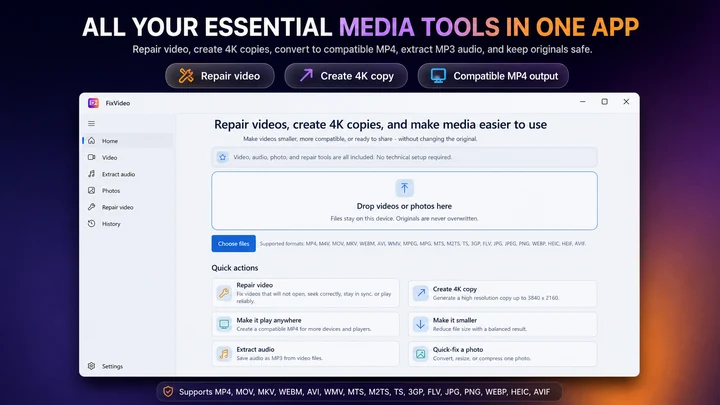

FixVideo is an offline video repair, compression, and conversion toolkit for Windows. Repair supported playback issues, compress 4K and HD recordings, convert videos to MP4, extract MP3 audio, and batch-optimize photos without uploading your personal files.

Video cutting, silence removal, and Whisper captions in a desktop editor.
Tutorials
Learn how to download multiple videos on Windows 11, manage batch download queues, choose available video quality, and troubleshoot common issues.
Troubleshooting
Troubleshoot failed video downloads on Windows 11, from unrecognized URLs and permission errors to interrupted transfers, storage issues, and batch download problems.
Video & streaming
M3U8 Downloader for Windows 11: Save HLS Video Streams
Video Downloader & streaming
Save a supported M3U8 stream as a locally usable video, preferably MP4
Video Downloader & streaming
Record compatible livestreams you are authorized to save, track download activity, and keep recordings locally on your Windows PC. Copy summary
Windows apps
Paste supported MP4, MP3, M3U8 and other media links into one Windows downloader to manage files, recordings, and local history.
Troubleshooting
Learn why a video downloader may show 1080p instead of 4K or 8K, and how to check source quality, formats, access limits, and saved file resolution.
Video & streaming
Understand MPEG-DASH MPD manifests, save supported streams on Windows 11, and troubleshoot missing audio, expired links, and DRM restrictions.
Workflow guide
A practical Windows 11 workflow for taking an authorized video from download through format checks, repair or conversion, editing, subtitles, final export, and upload.
Video Downloader & streaming
An M3U8 file is a UTF-8 text playlist used by HLS streaming. Learn how master and media playlists work, why an M3U8 is not an MP4, and how to save a supported stream on Windows.
Video Downloader & streaming
HLS and MPEG-DASH both adapt video quality over HTTP, but use different manifests and playback ecosystems. Compare M3U8 and MPD, codecs, CMAF, compatibility, latency and saving supported streams on Windows.
Video Downloader & streaming
Downloaded a .ts file instead of an MP4? Learn why HLS video arrives in MPEG-TS segments, how to tell a complete recording from one short segment, and when remuxing to MP4 is possible.
Subtitles & video
Compare SRT and WebVTT subtitle formats, see examples, understand what is lost in conversion, and learn to batch-convert privately in your browser.
Explainer
Compare automatic captions with creator-edited subtitles: accuracy, timing, accessibility, SRT files and a practical Windows 11 workflow.
Explainer
Learn the difference between burned-in captions, selectable subtitle tracks and separate SRT/VTT files—and which format to use for sharing or uploading videos.
Explainer
Video downloaded but won’t open, shows a black screen or plays without sound? Check incomplete files, MP4 codecs and format compatibility before converting.
Explainer
Fix a sideways or upside-down phone video on Windows 11. Learn rotation metadata, Clipchamp steps, aspect ratio and when to export a new MP4.
Technology explained
An MPD file is the XML manifest of an MPEG-DASH video stream: a map of the tracks, qualities and segments a player downloads. See what is inside one, why it will not play alone, and how to check or save a DASH stream on Windows.
Technology explained
ASS is a styled subtitle format with fonts, colours, positions and effects. See what is inside an ASS file, how it differs from SRT, why many players ignore it, and what changes when you convert it.
Technology explained
Drop-frame timecode skips frame numbers, not frames, so 29.97 fps video keeps clock time. See why it exists, how the rule works, when to use drop-frame or non-drop, and how to convert timecode.
Explainer
Learn how to search for text inside PDF and Word documents on Windows 11, troubleshoot indexing, and find files by content.
Workflow guide
Find an old document even when you have forgotten its filename. Search by phrases, invoice numbers or document contents.