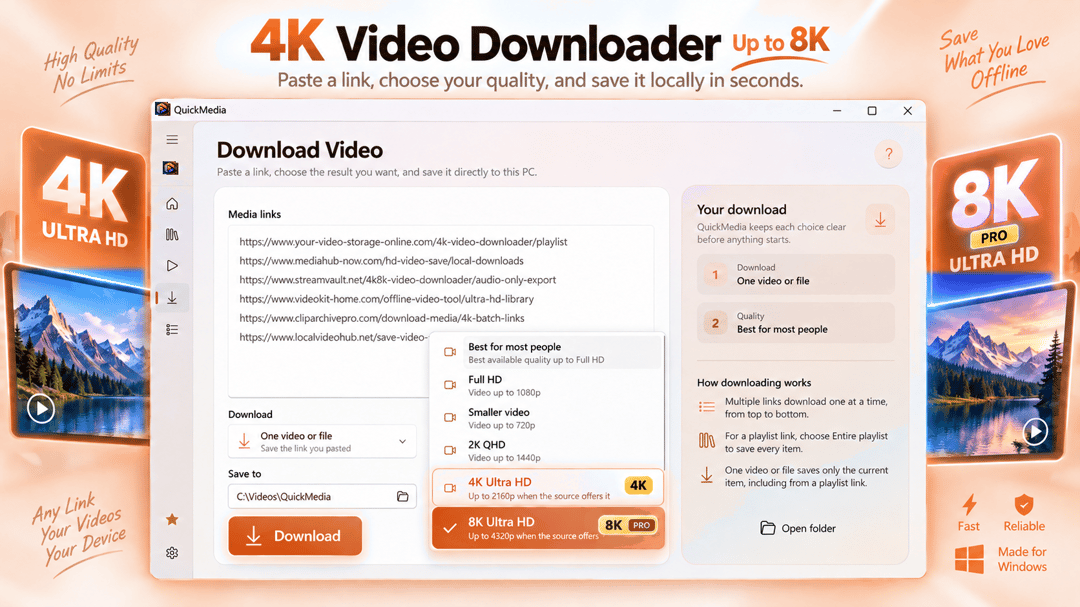
Download videos fast in 4K Ultra HD and up to 8K, save complete playlists, queue multiple video links, and keep your media offline on your Windows PC.

Media
VidFetch: 4K Video Downloader
Black MonthPro Lifetime 50% off on Microsoft Store (US) through Nov 29
Download 4K and 8K videos when available, save playlists, batch download multiple video links, and extract MP3 audio. VidFetch makes downloading and managing videos simple on Windows 11.
Download high-quality videos in 4K Ultra HD and up to 8K with VidFetch Pro.
Windows app. Pricing and requirements are listed on Microsoft Store.
At a glance
View the official listing
Is it right for you?
Choose VidFetch if
you need subtitles with the video: pick a language, creator-provided or auto-generated, and save them next to the file or embedded in it (Pro).
Choose Direct Link Downloader instead if
you want one app for most downloads: direct links, M3U8/HLS and MPD/DASH streams, supported livestreams, MP3 and fast trimming, with 4K/8K and batches of up to 500 links in Pro.
Choose Video Downloader 4K & Converter Pro instead if
the file needs work after you save it: a copy that plays anywhere, a smaller file, a sideways or mirrored video put right, a shorter clip, MP3 audio or a GIF.
Not sure? Answer 2 questions to find yours →
Side by side
| Feature |  VidFetch |  Direct Link Downloader |  Video Downloader 4K & Converter Pro |
|---|---|---|---|
| Save videos from supported links | Yes | Yes | Yes |
| 4K and 8K when the source offers it | Pro | Pro | Pro |
| M3U8 (HLS) and MPD (DASH) streams | Not listed | Yes | Not listed |
| Record supported livestreams | Not listed | Yes | Not listed |
| Subtitles by language, saved or embedded | Pro | Not listed | Not listed |
| Playlists and many links at once | Pro | Pro | Pro |
| Download queue with progress | Yes | Yes | Yes |
| Retry failed downloads | Yes | Yes | Not listed |
| Local download history | Yes | Yes | Not listed |
| Video to MP3 | Not listed | Yes | Yes |
| Trim videos | Not listed | Yes | Yes |
| Convert to MP4 and compress | Not listed | Pro | Yes |
| Rotate, mirror or make a copy that plays anywhere | Not listed | Not listed | Yes |
| Make GIFs and capture frames | Not listed | Not listed | Yes |
✓ listed feature · Pro: with the app’s Pro option · — not listed as a feature. Current details, pricing and Pro options are on each Microsoft Store listing.
Meet VidFetch
Download high-quality videos in 4K Ultra HD and up to 8K with VidFetch Pro. Save supported video playlists, batch download multiple links, extract audio, and manage every transfer from one focused Windows application. Save a single Full HD video or organize a larger collection with ease.
VidFetch now uses .NET Native AOT, Microsoft's ahead-of-time compilation technology. Application code is compiled into native machine code before you launch it, reducing runtime compilation overhead and supporting fast startup and efficient memory usage. Network speeds still depend on your connection and the media source.
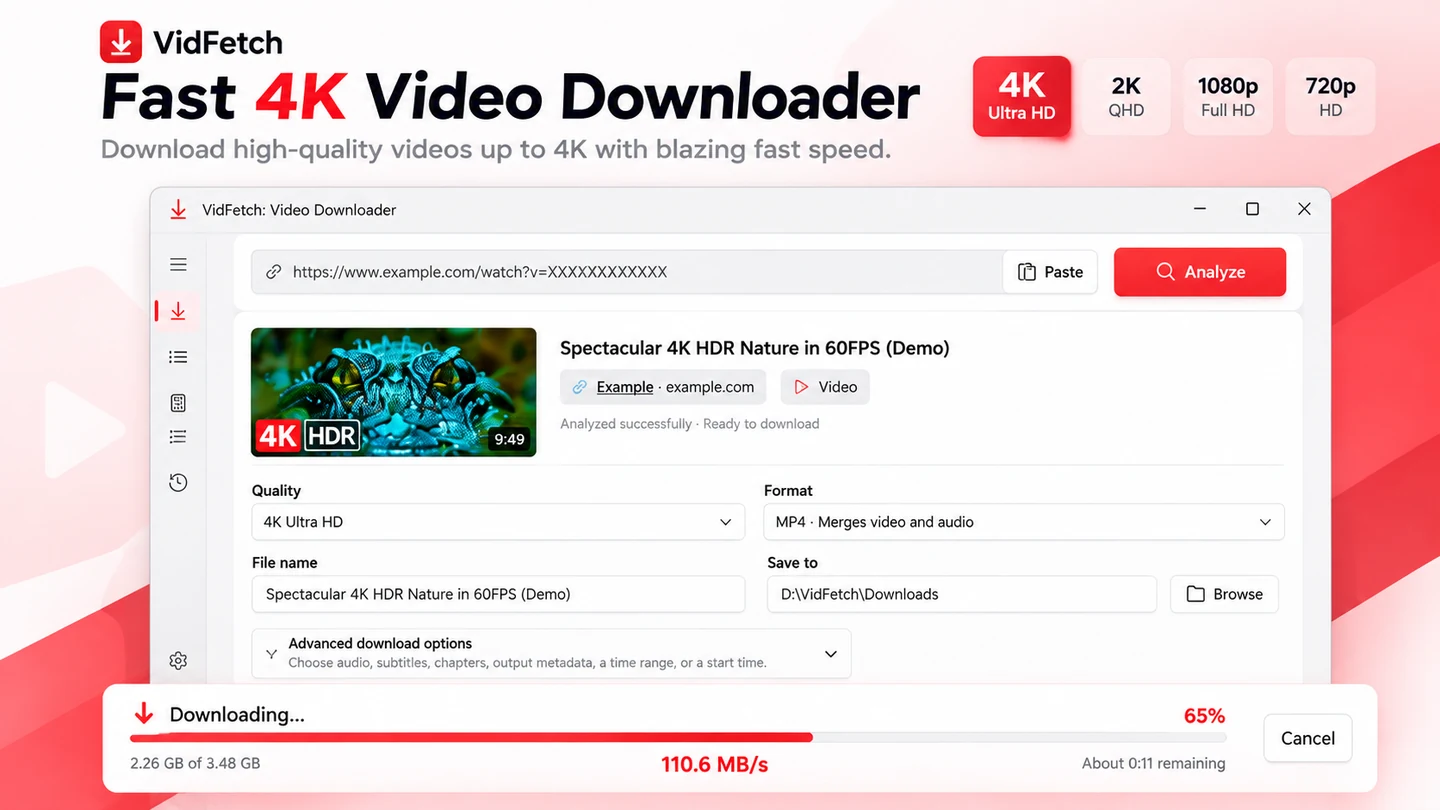
Save videos in crisp 4K Ultra HD when that resolution is provided by the original source. VidFetch Pro lets you paste a media link, review detected video and audio formats, select a suitable resolution, and save the file directly to your PC. Keep original detail for offline viewing, presentations, and personal archives. VidFetch shows the qualities a source provides rather than inventing extra resolution.
Go beyond 4K with up to 8K downloads on compatible media sources. When the original video offers an 8K stream, VidFetch Pro can present that option alongside other available resolutions. Depending on the source, these may include SD, HD, Full HD 1080p, 2K, 4K, and 8K. Choose a quality and file size that fits your needs. VidFetch never claims to upscale a lower-resolution video into true 8K content.
Different websites offer different media formats. VidFetch analyzes compatible links and shows available options for each video. Compare resolutions and formats before downloading, then save the version that fits your screen, storage space, or workflow. Audio tracks and codecs depend on the original media source.
Stop copying one video link at a time. VidFetch Pro can analyze supported playlists, display available entries, and let you select the videos you want to save. Add the chosen items to your download queue and monitor their progress together. Ideal for authorized tutorials, educational collections, and your own videos. Playlist support and individual item availability depend on the source website and its access rules.
Have many video links ready? Use VidFetch Pro to add multiple URLs and manage them as one organized batch. Each download remains a separate task, with its own status, progress, completion information, and failure or retry state. Batch downloading saves repetitive steps when handling authorized media. Spend less time pasting links and more time on the content you need.
VidFetch Pro supports processing multiple compatible download jobs at the same time. Parallel downloading helps you work through a queue of videos without waiting for each item to finish before the next begins. Review active tasks, completed files, and any items that require attention from the same workspace. Transfer speeds depend on your internet connection, bandwidth, file sizes, and source servers.
Sometimes the soundtrack is all you need. With VidFetch Pro, you can use the audio extraction workflow for compatible media, choosing available audio options without keeping the full video when the source supports it. Save authorized lectures, interviews, recordings, and other audio-focused media. Audio formats, quality, and availability are determined by the source streams and supported processing options.
VidFetch keeps the core workflow straightforward. Copy a compatible media URL, paste it into the app, review the detected formats, choose the quality you prefer, and start the download. Choose where files are saved on your PC. Analysis, format selection, and download management stay together in one app.
VidFetch is designed for a responsive desktop workflow with practical controls instead of unnecessary features. Native AOT helps reduce startup compilation work. The interface focuses on link analysis, format selection, transfers, and finished files. System, Light, and Dark appearance options help it fit naturally into your Windows desktop.
Keep active downloads visible in a dedicated queue. Follow each job's progress, identify which items are finished, and quickly spot tasks that need attention. Instead of relying on a browser's download list or tracking multiple open tabs, use VidFetch as your central video download manager. A clear queue is especially useful during longer downloads, multi-link batches, and playlist sessions.
Manage supported download jobs from the app. Pause or resume transfers when those operations are available for the source and download type, and retry eligible failed jobs without rebuilding your entire list. Network or server changes can affect resuming. VidFetch makes available controls accessible while keeping each job's status visible.
Your completed download history is stored locally on your Windows device. Review previous jobs, revisit download information, and find files you have already saved without depending on your browser history. Settings and preferences are local too. Your media files remain in the folders you choose, giving you direct control over your downloaded collection.
Start with the free edition of VidFetch for everyday single-video downloads. Paste a media link, inspect the formats and standard quality options available to Free users, choose a compatible option, and save your video to your PC. The free experience includes the essential downloading workflow, queue visibility, local history, and core download management. Upgrade for higher resolutions and advanced workflows.
Upgrade when a single standard-quality download is not enough. VidFetch Pro adds 4K Ultra HD and up to 8K download options when available, compatible playlist processing, batch downloads from multiple links, parallel jobs, audio extraction, and advanced download features. Pro is made for high-resolution videos and larger collections. Available subscription and Lifetime purchase options, regional prices, and entitlements are displayed through Microsoft Store.
Native AOT compiles supported .NET application code ahead of time rather than relying on Just-in-Time compilation during normal execution. This reduces startup compilation overhead and can improve memory efficiency. It does not improve source resolution or guarantee faster network transfers. The goal is a lean Windows app focused on video downloads.
Save downloaded media directly to a destination on your PC. Organize authorized offline copies however you prefer. Core file handling, download management, metadata processing, and supported post-download operations take place locally. You do not need to upload completed video files to a separate cloud conversion website simply to save or manage them.
VidFetch includes interface localization for English, Deutsch, Español, Français, Bahasa Indonesia, Italiano, 日本語, 한국어, Nederlands, Polski, Português (Brasil), Русский, Türkçe, Tiếng Việt, 简体中文, and 繁體中文. Choose a familiar language and use the same video analysis, format selection, queue, and history workflow across supported locales.
VidFetch is designed to minimize unnecessary collection of personal information. Download history, settings, and preferences are stored locally. VidFetch does not sell your personal information or use downloaded media, local files, download history, or app activity for advertising, behavioral profiling, or AI model training. VidFetch does not intentionally collect behavioral analytics, usage telemetry, or crash reports.
Internet access is required for online video link inspection and downloads. When you submit a URL, VidFetch communicates with the relevant media source or necessary supporting infrastructure to retrieve available formats and the content you request. As with standard internet connections, those services may receive your IP address and request information. VidFetch does not operate a developer-controlled behavioral tracking system for these download activities.
Video resolutions, audio streams, formats, codecs, frame rates, file sizes, playlists, and available download controls depend on the original media and source website. 4K and up to 8K require VidFetch Pro and an original compatible source stream. Some links or formats may be unavailable. VidFetch does not upscale videos, manufacture missing qualities, or guarantee permanent compatibility with every site, playlist, link, or region.
VidFetch is intended only for media you own, have permission to download, or are otherwise legally authorized to save. Respect copyright, licensing terms, and applicable platform rules. VidFetch does not bypass DRM, encryption, copy protection, paywalls, authentication requirements, subscriptions, or other access controls. Protected or restricted media may be unavailable. Downloading does not grant redistribution or commercial-use rights.
VidFetch brings together the tools people look for in a modern Windows video downloader: 4K and 8K quality options, playlist downloading, batch video downloads, parallel transfers, audio extraction, a visible download queue, local history, and practical job controls. Native AOT strengthens the Windows performance foundation. Paste a link, choose an available quality, and save authorized media to your PC.
See the Microsoft Store listing for current features, system requirements, supported languages, and purchase options.
Common questions
VidFetch: 4K Video Downloader is a Windows app by SteveShines in the Media category. Download high-quality videos in 4K Ultra HD and up to 8K with VidFetch Pro.
Highlights of VidFetch: Download supported online videos; Choose available video and audio quality; 4K and up to 8K downloads when available (Pro); Multiple-link downloading (Pro); Supported playlist downloading (Pro); Download queue, progress and retry controls; Local download history; Download subtitles by language, saved or embedded (Pro).
VidFetch runs on Windows 11, Windows x64, and Windows ARM64 PCs. See the Microsoft Store listing for full system requirements.
VidFetch is available in English, German, Spanish, French, Indonesian, Italian, Japanese, Korean and 8 more.
Install VidFetch from its official Microsoft Store listing (https://apps.microsoft.com/detail/9NJBR8JVCCSC). Microsoft Store handles installation and updates, and the listing shows current pricing and purchase options.
VidFetch is developed and published by SteveShines, which makes Windows apps for files, media, creative work, and desktop productivity. For help, use https://steveshines.com/contact/.
Runs in your browser. Nothing is uploaded.
Download videos fast in 4K Ultra HD and up to 8K, save complete playlists, queue multiple video links, and keep your media offline on your Windows PC.

Download 4K and 8K videos when available, save M3U8 and MPD streams, record live streams directly from URLs, batch download multiple video links, and extract MP3 audio. Direct Link Downloader brings powerful video downloading and stream recording tools together in one easy-to-use Windows app.

Video cutting, silence removal, and Whisper captions in a desktop editor.
Tutorials
Learn how to download multiple videos on Windows 11, manage batch download queues, choose available video quality, and troubleshoot common issues.
Video & streaming
M3U8 Downloader for Windows 11: Save HLS Video Streams
Video Downloader & streaming
Save a supported M3U8 stream as a locally usable video, preferably MP4
Video Downloader & streaming
Record compatible livestreams you are authorized to save, track download activity, and keep recordings locally on your Windows PC. Copy summary
Windows apps
Paste supported MP4, MP3, M3U8 and other media links into one Windows downloader to manage files, recordings, and local history.
Troubleshooting
Learn why a video downloader may show 1080p instead of 4K or 8K, and how to check source quality, formats, access limits, and saved file resolution.
Video & streaming
Understand MPEG-DASH MPD manifests, save supported streams on Windows 11, and troubleshoot missing audio, expired links, and DRM restrictions.
Workflow guide
A practical Windows 11 workflow for taking an authorized video from download through format checks, repair or conversion, editing, subtitles, final export, and upload.
Technology explained
An approachable explanation of .NET Native AOT, its real benefits and limitations, and what the technology means for VidFetch users.
Video Downloader & streaming
An M3U8 file is a UTF-8 text playlist used by HLS streaming. Learn how master and media playlists work, why an M3U8 is not an MP4, and how to save a supported stream on Windows.
Video Downloader & streaming
HLS and MPEG-DASH both adapt video quality over HTTP, but use different manifests and playback ecosystems. Compare M3U8 and MPD, codecs, CMAF, compatibility, latency and saving supported streams on Windows.
Video Downloader & streaming
Downloaded a .ts file instead of an MP4? Learn why HLS video arrives in MPEG-TS segments, how to tell a complete recording from one short segment, and when remuxing to MP4 is possible.
Subtitles & video
Compare SRT and WebVTT subtitle formats, see examples, understand what is lost in conversion, and learn to batch-convert privately in your browser.
Explainer
Compare automatic captions with creator-edited subtitles: accuracy, timing, accessibility, SRT files and a practical Windows 11 workflow.
Explainer
Learn the difference between burned-in captions, selectable subtitle tracks and separate SRT/VTT files—and which format to use for sharing or uploading videos.
Explainer
Video downloaded but won’t open, shows a black screen or plays without sound? Check incomplete files, MP4 codecs and format compatibility before converting.
Explainer
Fix a sideways or upside-down phone video on Windows 11. Learn rotation metadata, Clipchamp steps, aspect ratio and when to export a new MP4.
Technology explained
An MPD file is the XML manifest of an MPEG-DASH video stream: a map of the tracks, qualities and segments a player downloads. See what is inside one, why it will not play alone, and how to check or save a DASH stream on Windows.
Technology explained
ASS is a styled subtitle format with fonts, colours, positions and effects. See what is inside an ASS file, how it differs from SRT, why many players ignore it, and what changes when you convert it.
Technology explained
Drop-frame timecode skips frame numbers, not frames, so 29.97 fps video keeps clock time. See why it exists, how the rule works, when to use drop-frame or non-drop, and how to convert timecode.
Explainer
Learn how to search for text inside PDF and Word documents on Windows 11, troubleshoot indexing, and find files by content.
Workflow guide
Find an old document even when you have forgotten its filename. Search by phrases, invoice numbers or document contents.