
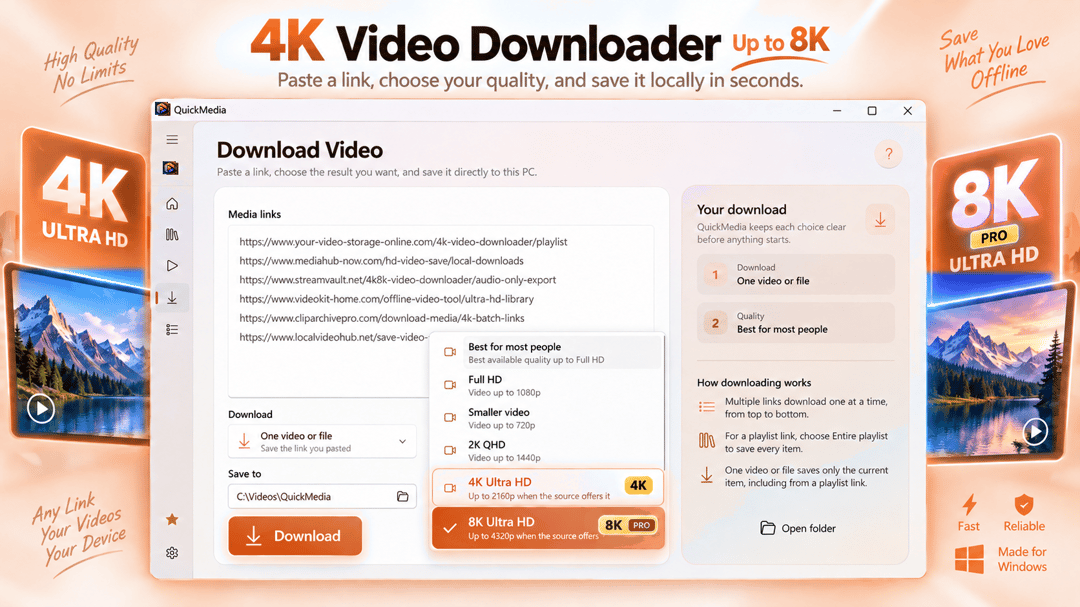

Download 4K videos, save supported playlists, and manage your media on Windows. QuickMedia combines video downloading, format conversion, trimming, compression, and audio extraction in one easy-to-use app.

Media
Video Converter: MP4 & HEVC
Black MonthPro Lifetime 40% off on Microsoft Store (US) through Nov 29
Convert MP4, MOV, MKV and HEVC videos with flexible quality and compression controls.
Need to change a video format, reduce file size, or make a recording compatible with another device?
Windows app. Pricing and requirements are listed on Microsoft Store.
Meet Video Converter: MP4 & HEVC
Need to change a video format, reduce file size, or make a recording compatible with another device? Video Converter: MP4, MOV, MKV, HEVC brings essential video conversion, compression, and supported repair tools together in one easy-to-use Windows application.
Whether you are converting MOV videos to MP4, preparing MKV recordings for playback, compressing large video files, or organizing multiple conversion tasks, Video Converter gives you a convenient workspace to get the job done.
Import your videos, choose the output format and quality, preview the conversion, and save the finished result with Pro. Video processing takes place locally on your PC, so you do not need to upload personal recordings to an online conversion service.
Different devices, video players, editing applications, and websites support different media formats. A recording that works perfectly on one device may not open correctly on another.
Video Converter helps you prepare supported files for the format you need without navigating complicated media conversion software.
Import popular video formats including MP4, MOV, MKV, AVI, WebM, and M4V. Choose compatible output formats and encoding settings based on your intended use.
Common conversion tasks include converting MOV to MP4 for easier sharing, converting MKV to MP4 for compatibility, changing MP4 video encoding, and preparing WebM files for supported playback or editing workflows.
Whether your files come from a smartphone, screen recorder, camera, or existing video collection, the application provides a straightforward way to work with different video containers and codecs.
MP4 is one of the most widely supported video formats, making it a practical choice for sharing recordings, editing videos, and playing content across different devices.
Use Video Converter to create compatible MP4 output from supported input files. Choose suitable video encoding settings, adjust output quality, and select where completed videos should be saved.
For example, MOV recordings can be converted into MP4 files for a more convenient sharing workflow, while supported MKV files can be prepared as MP4 videos when your preferred device or application requires that format.
The application also provides options for users who want more control over the resulting video rather than relying entirely on automatic conversion settings.
The video container is only part of the conversion process. The video codec also affects compatibility, visual quality, processing time, and output file size.
Video Converter provides selectable encoding options for supported combinations, including H.264 and H.265 / HEVC.
H.264 is a practical option when broad compatibility is important. HEVC can provide more efficient compression for compatible devices and software, although processing requirements and playback support may differ.
Choose a quality preset, adjust supported output settings, and select an appropriate resolution for your video.
Available encoding options depend on the selected format, media characteristics, and processing capabilities. The application helps you work with compatible combinations instead of treating every format and codec as interchangeable.
Large video recordings can quickly occupy storage space and become inconvenient to share.
The dedicated video compression workspace helps you reduce file size by choosing suitable compression settings for your videos.
Select a quality level according to your priorities. You might prefer higher visual quality for important recordings, a balanced result for everyday videos, or stronger compression when file size matters more.
The application supports compression workflows using compatible output formats and encoding options. Where available, resolution and codec settings provide additional control over the balance between quality and file size.
Compression results depend on the original video, its encoding, complexity, resolution, and selected settings. Already optimized recordings may not become significantly smaller.
After processing, review the actual output rather than relying on unrealistic promises about a fixed compression percentage.
Converting video files one at a time can be inconvenient, especially when working with recordings from different devices or handling a larger collection.
Video Converter supports a batch-oriented workspace where multiple videos can be organized into a processing queue.
Add individual files or import supported videos from a folder. Configure the desired output format, codec, quality, and destination, then manage the conversion work from one place.
View processing status, identify completed files, and handle failed or interrupted tasks without repeatedly starting the entire workflow from the beginning.
Batch conversion is particularly useful for preparing screen recordings, organizing media collections, converting camera files, and creating compatible copies of multiple videos.
Pro unlocks the supported batch processing and saving capabilities.
Choosing a new codec or compression level can affect the resulting video. Previewing a conversion helps you make a more informed decision before exporting a finished file.
Video Converter provides a preview-oriented workflow for supported conversion and compression operations.
Import a video, select your intended settings, and inspect the preview result where available. Make adjustments before committing to the final saved output.
The free experience lets you explore supported previews, while Pro unlocks saving completed conversion and compression results.
This gives you an opportunity to evaluate the workflow and output settings before purchasing a Pro license.
Video Converter also includes a dedicated Repair workspace built around supported video recovery and inspection operations.
Some video problems involve container structure, metadata, or recordings that were interrupted before being finalized correctly. Depending on the condition and format of the file, certain issues may be repairable.
The application can inspect supported files and identify available recovery operations. When a repair is possible, the tool guides you through the supported process.
For unsupported or unrecoverable recordings, the application provides an appropriate explanation rather than claiming that every damaged video can be restored.
Repair capabilities depend on the format, codec, available media information, and type of corruption. Severely damaged files or files with missing essential video data may not be recoverable.
Personal videos can contain family memories, private recordings, work material, or other files you may not want to upload to a website.
Video Converter performs its supported conversion, compression, and repair operations locally on your Windows computer.
Your original media remains on your device, and the application is designed to preserve source files while producing separate output files.
You can select an output destination and manage the resulting videos using Windows File Explorer.
No cloud video upload is required for local media processing. Microsoft Store licensing and related online product services may require an internet connection.
Video Converter is designed to make common media tasks accessible without overwhelming users with advanced technical settings.
The Convert workspace focuses on changing video formats and encoding options. The Compress workspace focuses on reducing file size. The Repair workspace provides supported inspection and recovery functionality.
Add your files, configure output options through the settings interface, and manage processing from the main workspace.
Common settings are easy to find, while more advanced options remain available for users who need additional control.
Whether you are converting a single recording or handling multiple files, the goal is to keep your workflow understandable and organized.
Video Converter offers optional Pro access through Microsoft Store purchases.
Pro unlocks supported premium capabilities, including saving converted and compressed videos, working with multiple files, and accessing available advanced repair and reporting features.
Choose the access period that matches your needs:
1 Month: 30 days of Pro access with a one-time, non-renewing purchase.
6 Months: 180 days of Pro access with a one-time, non-renewing purchase.
Lifetime: Permanent Pro access through a one-time purchase.
These plans do not renew automatically. The features available under Pro depend on the application's supported capabilities and current version.
Video Converter is useful for Windows users who need to change video formats, compress recordings, or prepare media for other applications.
Students and teachers can prepare supported video files for presentations, lessons, and assignments. Content creators can organize recordings and convert files for editing or sharing. Office users can work with videos that need more compatible formats or smaller file sizes.
Home users can convert camera recordings, manage large videos, and prepare personal media for compatible playback devices.
The application is suitable for people who want practical video conversion tools without having to learn a complicated professional editing workflow.
See the Microsoft Store listing for current features, system requirements, supported languages, and purchase options.
Common questions
Video Converter: MP4 & HEVC is a Windows app by SteveShines in the Media category. Need to change a video format, reduce file size, or make a recording compatible with another device?
Video Converter: MP4 & HEVC is a Windows desktop app. See the Microsoft Store listing for current system requirements.
Install Video Converter: MP4 & HEVC from its official Microsoft Store listing (https://apps.microsoft.com/detail/9NXX4BDM7823). Microsoft Store handles installation and updates, and the listing shows current pricing and purchase options.
Video Converter: MP4 & HEVC is developed and published by SteveShines, which makes Windows apps for files, media, creative work, and desktop productivity. For help, use https://steveshines.com/contact/.
Download 4K videos, save supported playlists, and manage your media on Windows. QuickMedia combines video downloading, format conversion, trimming, compression, and audio extraction in one easy-to-use app.
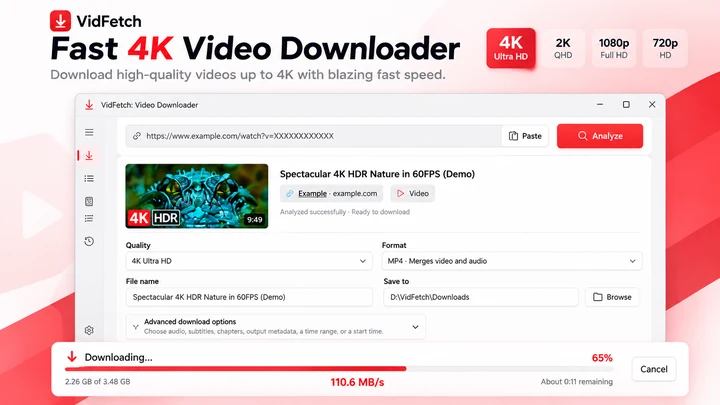
4K & 8K VIDEO DOWNLOADER FOR WINDOWS Download high-quality videos in 4K Ultra HD and up to 8K with VidFetch Pro.
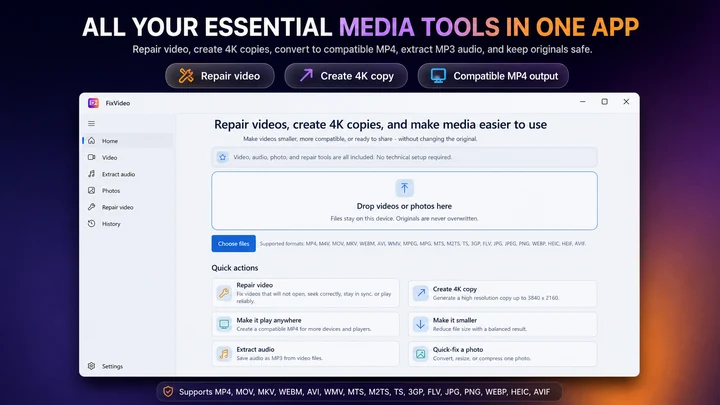

FixVideo is an offline video repair, compression, and conversion toolkit for Windows. Repair supported playback issues, compress 4K and HD recordings, convert videos to MP4, extract MP3 audio, and batch-optimize photos without uploading your personal files.
Workflow guide
A practical Windows 11 workflow for taking an authorized video from download through format checks, repair or conversion, editing, subtitles, final export, and upload.
Video Downloader & streaming
An M3U8 file is a UTF-8 text playlist used by HLS streaming. Learn how master and media playlists work, why an M3U8 is not an MP4, and how to save a supported stream on Windows.
Video Downloader & streaming
HLS and MPEG-DASH both adapt video quality over HTTP, but use different manifests and playback ecosystems. Compare M3U8 and MPD, codecs, CMAF, compatibility, latency and saving supported streams on Windows.
Video Downloader & streaming
Downloaded a .ts file instead of an MP4? Learn why HLS video arrives in MPEG-TS segments, how to tell a complete recording from one short segment, and when remuxing to MP4 is possible.

