
Files & documents
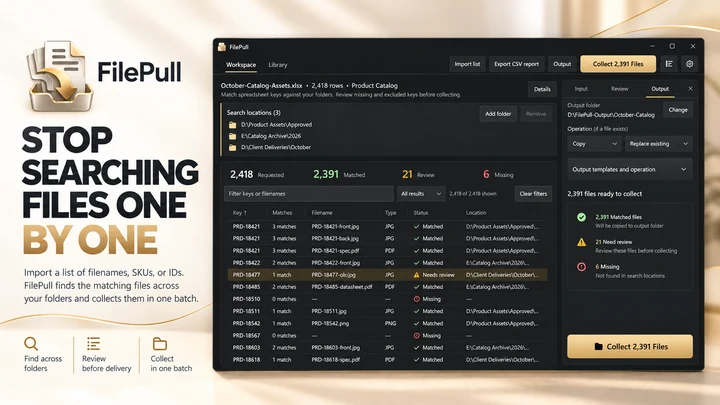
FilePull
Find and collect files in batches using a list of filenames, SKUs, or IDs.

Files & documents
InsideFind
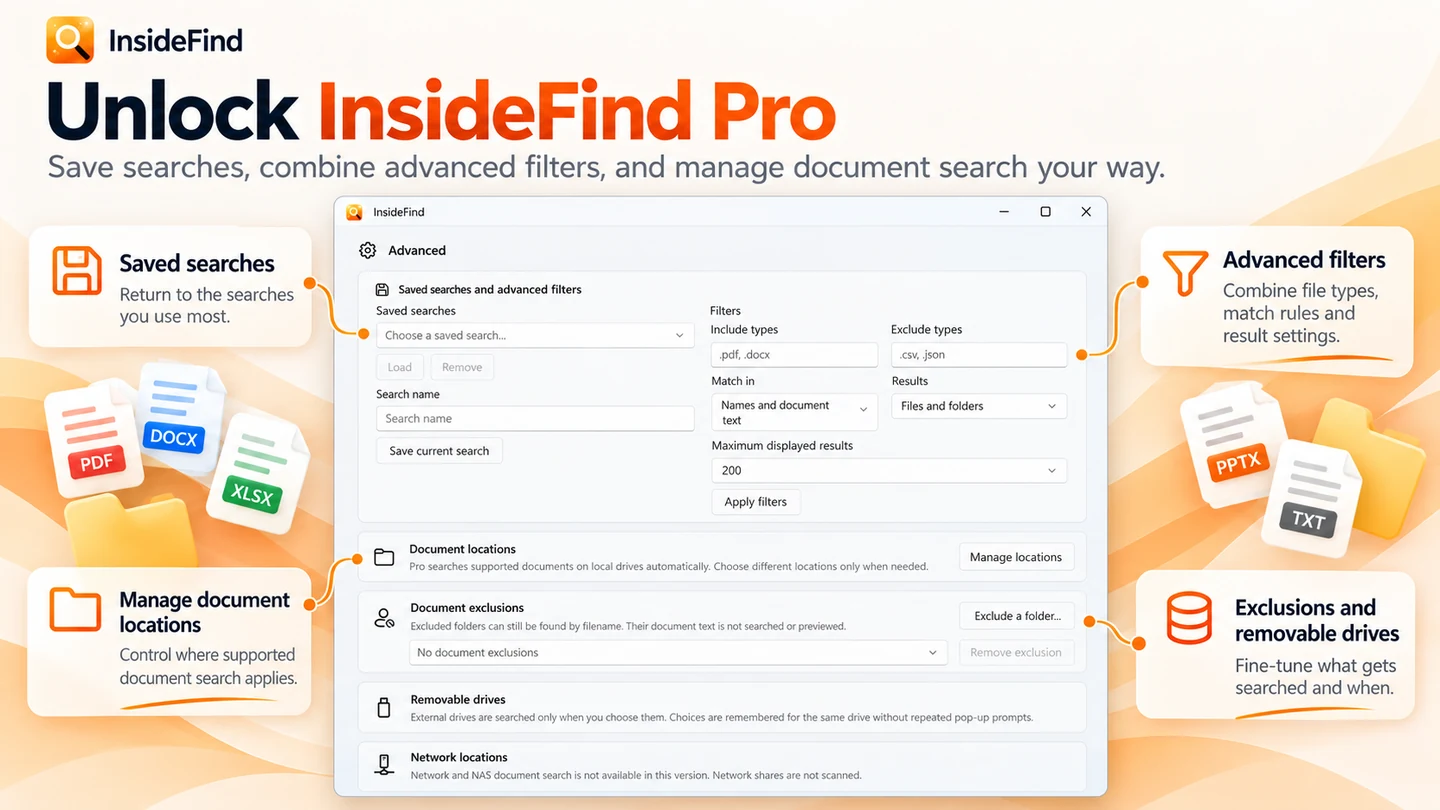
Search filenames and, with InsideFind Pro, the text inside supported documents.
Windows app. Pricing and requirements are listed on Microsoft Store.
At a glance
View the official listingMeet InsideFind
Forgot the filename but remember a phrase, number, project name, invoice detail, contract clause, or sentence inside the document? InsideFind helps you find files and folders across your Windows PC by filename, folder name, path, or the actual text stored inside supported documents. Instead of opening folders one by one or guessing filenames, type what you remember and InsideFind shows relevant results with matching text so you can identify the right file quickly.
See the Microsoft Store listing for current features, system requirements, supported languages, and purchase options.
Common questions
InsideFind is a Windows app by SteveShines in the Files & documents category. Search filenames and, with InsideFind Pro, the text inside supported documents.
Highlights of InsideFind: Filename and path search; Document content search with Pro.
InsideFind is a Windows desktop app. See the Microsoft Store listing for current system requirements.
Install InsideFind from its official Microsoft Store listing (https://apps.microsoft.com/detail/9N1DVWMN2DTZ). Microsoft Store handles installation and updates, and the listing shows current pricing and purchase options.
InsideFind is developed and published by SteveShines, which makes Windows apps for files, media, creative work, and desktop productivity. For help, use https://steveshines.com/contact/.
Find and collect files in batches using a list of filenames, SKUs, or IDs.
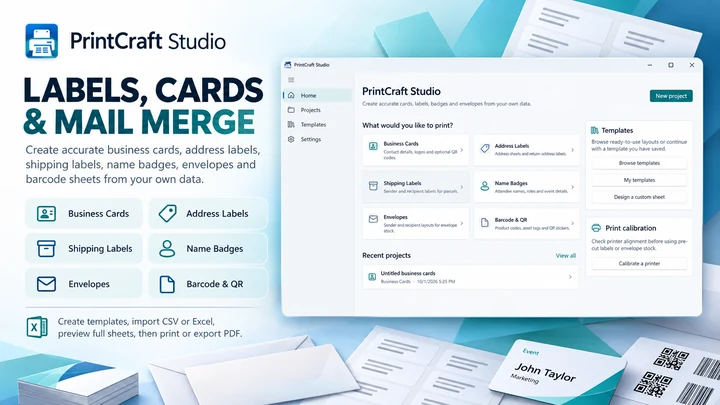

Create labels, cards, and print layouts with a dedicated Windows workspace.

Copy files from cards with verification built into the workflow.
Explainer
Learn how to move and copy files from multiple Windows folders, avoid repeated Copy/Paste, and organize a batch with a floating file staging shelf.
Explainer
Find screenshots saved by Win + Shift + S, Print Screen and Snipping Tool, check OneDrive, and keep your Windows 11 captures organized.
Explainer
Keep reference windows and notes visible on Windows 11 with Snap layouts, PowerToys Always On Top, or DeskPilot+ floating notes and window pinning.
Explainer
Learn how to search for text inside PDF and Word documents on Windows 11, troubleshoot indexing, and find files by content.
Workflow guide
Find an old document even when you have forgotten its filename. Search by phrases, invoice numbers or document contents.