

Files & documents
FilePull
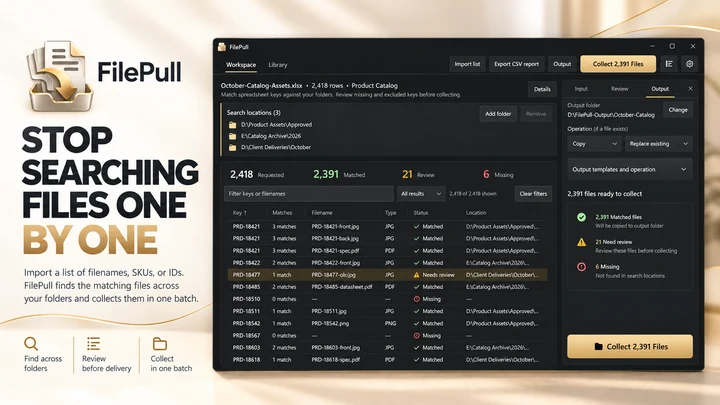
Find and collect files in batches using a list of filenames, SKUs, or IDs.
Files & documents
CardBackup
Copy files from cards with verification built into the workflow.
Windows app. Pricing and requirements are listed on Microsoft Store.
At a glance
View the official listingMeet CardBackup
CardBackup helps photographers and videographers create verified copies of camera media before clearing the original card. Choose your camera card, removable drive, or media folder, then select one or two backup destinations. CardBackup scans the source, checks your destinations, copies the files, then independently reads the destination files back and verifies them against the source with SHA-256 checksums.
See the Microsoft Store listing for current features, system requirements, supported languages, and purchase options.
Common questions
CardBackup is a Windows app by SteveShines in the Files & documents category. Copy files from cards with verification built into the workflow.
Highlights of CardBackup: File copying; Transfer verification.
CardBackup is a Windows desktop app. See the Microsoft Store listing for current system requirements.
Install CardBackup from its official Microsoft Store listing (https://apps.microsoft.com/detail/9PHKZFNFDG7M). Microsoft Store handles installation and updates, and the listing shows current pricing and purchase options.
CardBackup is developed and published by SteveShines, which makes Windows apps for files, media, creative work, and desktop productivity. For help, use https://steveshines.com/contact/.
Find and collect files in batches using a list of filenames, SKUs, or IDs.
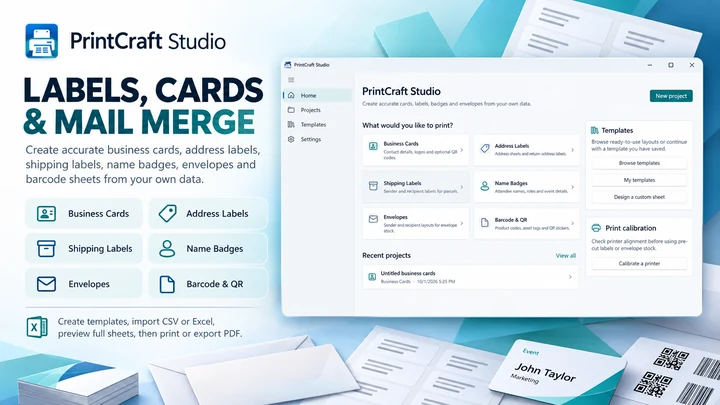

Create labels, cards, and print layouts with a dedicated Windows workspace.
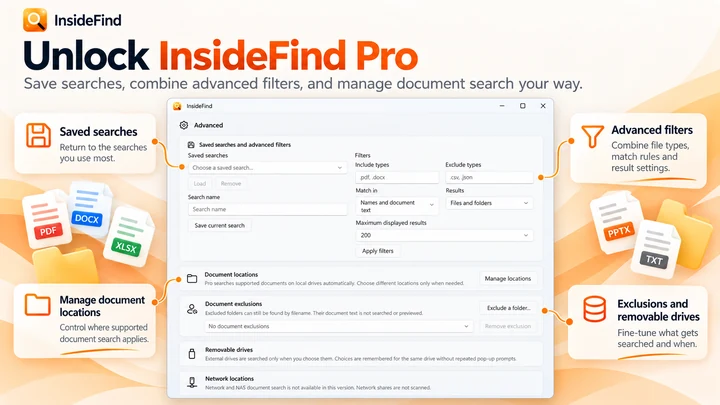

Search filenames and, with InsideFind Pro, the text inside supported documents.
Explainer
Learn how to move and copy files from multiple Windows folders, avoid repeated Copy/Paste, and organize a batch with a floating file staging shelf.
Explainer
Find screenshots saved by Win + Shift + S, Print Screen and Snipping Tool, check OneDrive, and keep your Windows 11 captures organized.
