

Creative tools
Iconize Studio
Generate app icons and assets, optimize SVGs, and process images in batches.
Creative tools
EverythingPixels
Image compression and pixel art tools for Windows.
Windows app. Pricing and requirements are listed on Microsoft Store.
At a glance
View the official listingMeet EverythingPixels
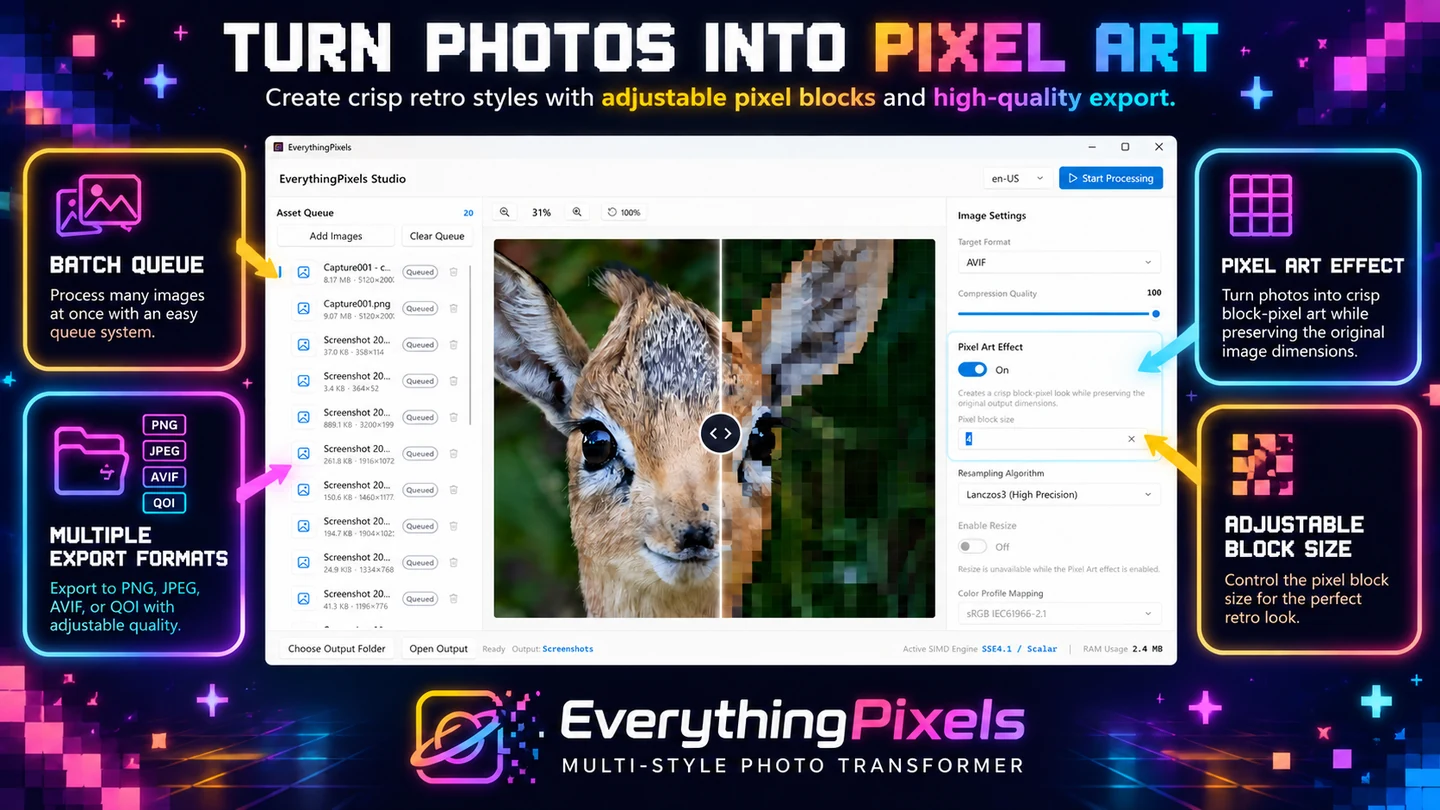
Compress images, resize entire collections, convert between modern image formats, or transform photos into crisp retro pixel art, all directly on your Windows PC.
See the Microsoft Store listing for current features, system requirements, supported languages, and purchase options.
Common questions
EverythingPixels is a Windows app by SteveShines in the Creative tools category. Image compression and pixel art tools for Windows.
Highlights of EverythingPixels: Image compression; Pixel art effects; Batch image processing.
EverythingPixels is a Windows desktop app. See the Microsoft Store listing for current system requirements.
Install EverythingPixels from its official Microsoft Store listing (https://apps.microsoft.com/detail/9P293K7HTMDL). Microsoft Store handles installation and updates, and the listing shows current pricing and purchase options.
EverythingPixels is developed and published by SteveShines, which makes Windows apps for files, media, creative work, and desktop productivity. For help, use https://steveshines.com/contact/.
Generate app icons and assets, optimize SVGs, and process images in batches.
Creative workflow
A practical checklist for image format, compression, and a careful batch export.
Explainer
Learn how to move and copy files from multiple Windows folders, avoid repeated Copy/Paste, and organize a batch with a floating file staging shelf.
Explainer
Find screenshots saved by Win + Shift + S, Print Screen and Snipping Tool, check OneDrive, and keep your Windows 11 captures organized.
