Files & documents
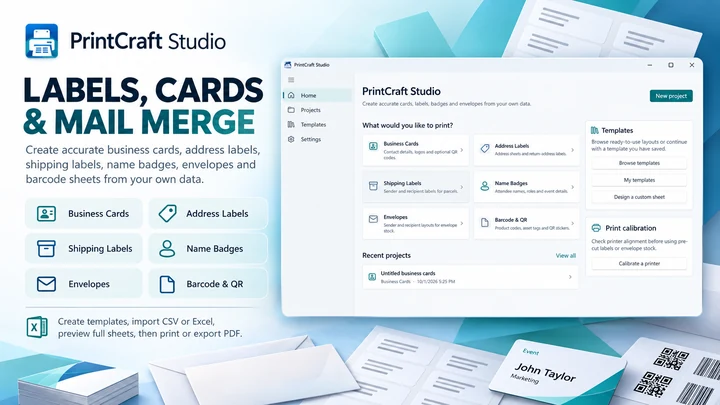
PrintMerge Studio
Create labels, cards, and print layouts with a dedicated Windows workspace.

Utilities
Check Printing Studio
CHECK PRINTING SOFTWARE FOR WINDOWS Need to print business checks without learning a complicated accounting system? Check Printing Studio is a Windows check writer and business check printer that hel
Windows app. Pricing and requirements are listed on Microsoft Store.
At a glance
View the official listingMeet Check Printing Studio
CHECK PRINTING SOFTWARE FOR WINDOWS Need to print business checks without learning a complicated accounting system? Check Printing Studio is a Windows check writer and business check printer that helps you prepare individual payments, print checks from Excel or CSV lists, review check layouts, and keep a record of checks you have issued. Enter payment details, preview the document, adjust alignment for your printer, and print on compatible check stock. The goal is a straightforward desktop workflow for legitimate business payments, not a full banking platform. Whether you prepare one contractor payment or a batch of supplier checks, the essential information stays organized in one place. CREATE A BUSINESS CHECK IN MINUTES Start with a bank profile, select or add a payee, enter the amount and date, then add a memo or payment reference. Check Printing Studio builds a printable check from those details and shows the result before you use paper. The check amount is formatted in numbers and written US dollar words so you can review both representations. Add or adjust the check number according to your business numbering sequence. Preparing another payment should not require rebuilding the same business address or bank information each time. This workflow is designed for business owners who need a check maker they can understand quickly. PRINT CHECKS FROM EXCEL AND CSV Have a spreadsheet of vendor payments, rent refunds, contractor payments, or reimbursements? Import a CSV or Excel XLSX file instead of copying each row by hand. The batch check printing workflow lets you connect columns such as Vendor Name, Payment Amount, Payment Date, Invoice Number, Memo, or Check Number to the corresponding payment fields. Review imported rows, correct errors, and exclude unwanted entries before printing. A single spreadsheet can become a group of check drafts ready for preview. For businesses already tracking payments in Excel, this provides a convenient way to turn a payment list into printable checks without adopting a separate accounting system. REVIEW BATCH PAYMENTS BEFORE YOU PRINT A useful batch check printer should never hide mistakes in an import. Check Printing Studio provides a review stage for imported payment rows, including payees, amounts, dates, references, and check numbers. Inspect the number of included checks and the combined payment amount, correct invalid or missing entries, and confirm the intended batch. Check numbering helps organize consecutive checks, while duplicate-number checks reduce accidental conflicts. Review the actual pages before sending them to a printer, especially when using sheets that contain more than one check. The application is designed to keep preparation separate from final printing, so you remain in control of what gets issued. BUSINESS CHECKS, VOUCHER CHECKS, AND CHECK LAYOUTS Different businesses buy different types of check paper. Select from the layouts supported by the application, including individual checks, three-check-per-page arrangements, and check-with-voucher formats. Voucher checks are useful when a company wants a payment check and a companion record showing the payee, amount, memo, or invoice reference. Depending on the selected layout, the check can appear at the top, middle, or bottom of the sheet, with voucher sections occupying the remaining space. This is especially helpful for vendor payments that need a removable check plus documentation for internal records. Choose a layout that matches your actual stock instead of assuming every business check has the same dimensions. PRINT ON PREPRINTED CHECK STOCK If you already have business check stock with printed bank details or background elements, use a suitable plain or preprinted layout so the software focuses on placing the appropriate payment information. Not every blank sheet of paper is valid check stock, and a decorative background does not make a check bank compliant. Before printing real payments, review the intended stock format, paper size, printer settings, and any MICR requirements with your bank or check-stock provider. The software prepares and positions check content. It does not manufacture secure paper, authenticate bank accounts, issue payments electronically, or guarantee that a bank will accept output from a particular printer. PREVIEW THE CHECK BEFORE USING PAPER Check printing depends on position as well as correct data. The print preview helps you inspect the payee name, date, check number, numeric amount, written amount, memo, and voucher details in their printable positions. Move between pages for multi-page batches and inspect how checks fit within the selected paper layout. A clear preview is useful when switching between templates, printers, or paper types, and when checking whether a long company name or reference fits the available space. Review first, then print, rather than discovering a placement problem after using valuable check stock. ADJUST PRINTER ALIGNMENT AND CALIBRATION Even when two printers use the same paper size, the actual position of printed content can differ. Check Printing Studio includes alignment controls so you can adjust horizontal and vertical placement to better match compatible check stock. Use a test page to inspect alignment before printing a real payment. Save supported printer calibration preferences so repeated sessions do not require the same setup work. The purpose of calibration is practical accuracy when placing text and check fields, not a promise of universal printer compatibility. Physical results depend on your printer, its driver settings, scaling behavior, chosen stock, and any special bank printing requirements. REUSABLE BANK ACCOUNT PROFILES Small businesses may write checks from an operating account, a property account, or a separate account used for another activity. Keep supported account profiles together so you can select the right payment source when preparing a check. Profiles can hold the account display name and relevant business information, with sensitive account details masked where appropriate in the application interface. Check Printing Studio is a check preparation tool; it does not connect to your bank, sign in to online banking, validate account ownership, synchronize balances, or transfer money. Users are responsible for safeguarding their Windows account, stored business information, and physical check stock. KEEP A SEARCHABLE CHECK REGISTER Printing is only part of the process. After preparing payments, you may need to find a check number, review who was paid, identify a voided check, or check whether a payment was reprinted. The local check register keeps supported check history, dates, payees, amounts, account references, and print status available for review. Search and filter previous entries instead of looking through loose notes. Void and reprint workflows are designed to preserve relevant history rather than silently replacing a previously issued check. The register is a useful local record for check preparation, but it is not bank reconciliation, proof of cleared payment, or a substitute for official account statements. DEPOSIT SLIPS AND LOCAL REPORTS Use supported deposit-slip tools for organizing deposits, and export available check-register information for local review where those features are enabled in the installed release. An exported register can help you archive check details or continue reviewing payment records in a spreadsheet. Keep in mind that a deposit slip printed from a general desktop printer may need institution-specific stock or formatting. Check your bank's requirements before using printed deposit documents. Check Printing Studio focuses on practical check-related documents instead of unrelated invoicing, payroll processing, or online bill payment. WHO BENEFITS FROM CHECK PRINTING SOFTWARE? Business owners can prepare approved supplier payments without rebuilding a check layout every time. Landlords and property managers can record paper-check payments for repairs and maintenance. Bookkeepers can use an existing Excel payment schedule as the starting point for a batch, then inspect each row before printing. Community organizations and small offices can keep reusable payees and check numbers together on one Windows PC. Check Printing Studio is intended for authorized check preparation in these everyday workflows. It is not a check verification service, an accounting ledger, or an electronic money transfer system. LOCAL-FIRST CHECK PREPARATION AND PRIVACY Business checks contain sensitive details. Check Printing Studio is designed to handle core check creation, payment import, check history, and printer preferences on your Windows PC. The core workflow does not require you to upload an Excel payment sheet to a cloud converter, connect to online banking, or create a remote account with the publisher. Protect your computer, local data, exports, signatures, and printed documents just as you would protect physical checks. Availability of operating-system licensing or Store services does not change the fact that the application is a local document-preparation utility, not a financial institution. Consult the published privacy policy for the precise data handling of the released version. PRINTING REQUIREMENTS AND IMPORTANT NOTES Check Printing Studio is designed for Windows PCs and requires a compatible printer for physical output. You must provide appropriate check stock and any bank-required supplies. Actual printing results depend on your printer driver, paper loading, paper size, margins, and check stock. Use a test print before issuing real checks. Supported layouts and optional tools depend on the installed version. This product does not certify your printed checks as bank compliant or guarantee acceptance by any bank. Buy once to use the supported application features without a recurring software subscription for the initial paid release.
See the Microsoft Store listing for current features, system requirements, supported languages, and purchase options.
Create labels, cards, and print layouts with a dedicated Windows workspace.
Copy files from cards with verification built into the workflow.